Browse & search docs
Panels & domains
LoreGUI is organised as a top bar (repo name, ⌘K, Theme, Sync, Push, Verify, and the identity menu), a sidebar of primary domains, a main work area of panels, and the command palette overlaying everything. Every operation declares where it lives — a rich panel, a context/row menu, or palette-only — so daily-loop operations get first-class UI while rare ones stay one keystroke away.
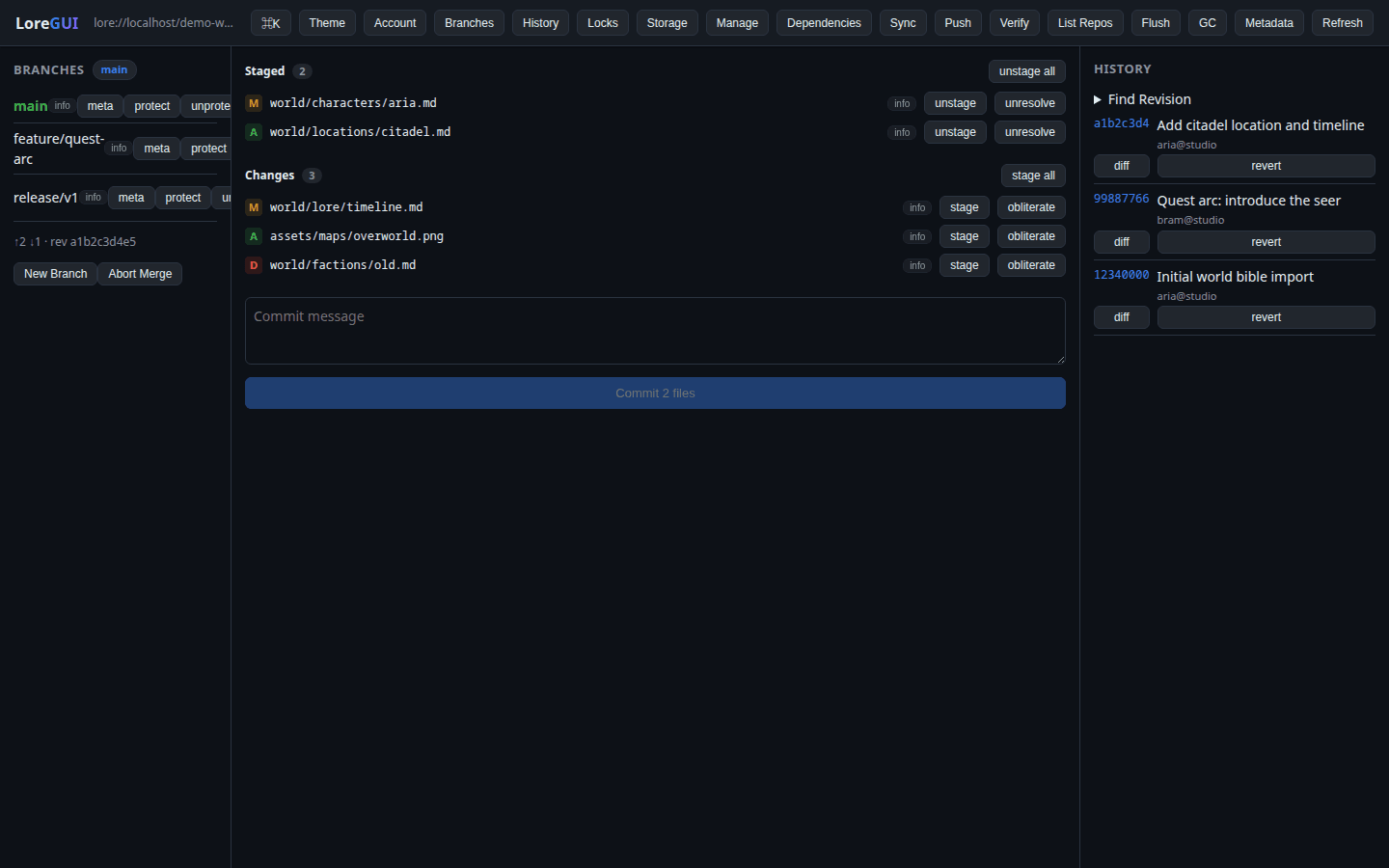
Changes
The daily staging surface and the home for repository status. It shows your staged and unstaged files as a list with per-file row actions — stage, unstage, dirty, obliterate, diff, history — and is where you write a commit message and commit (the revision commit action lives here, next to the changes it captures).
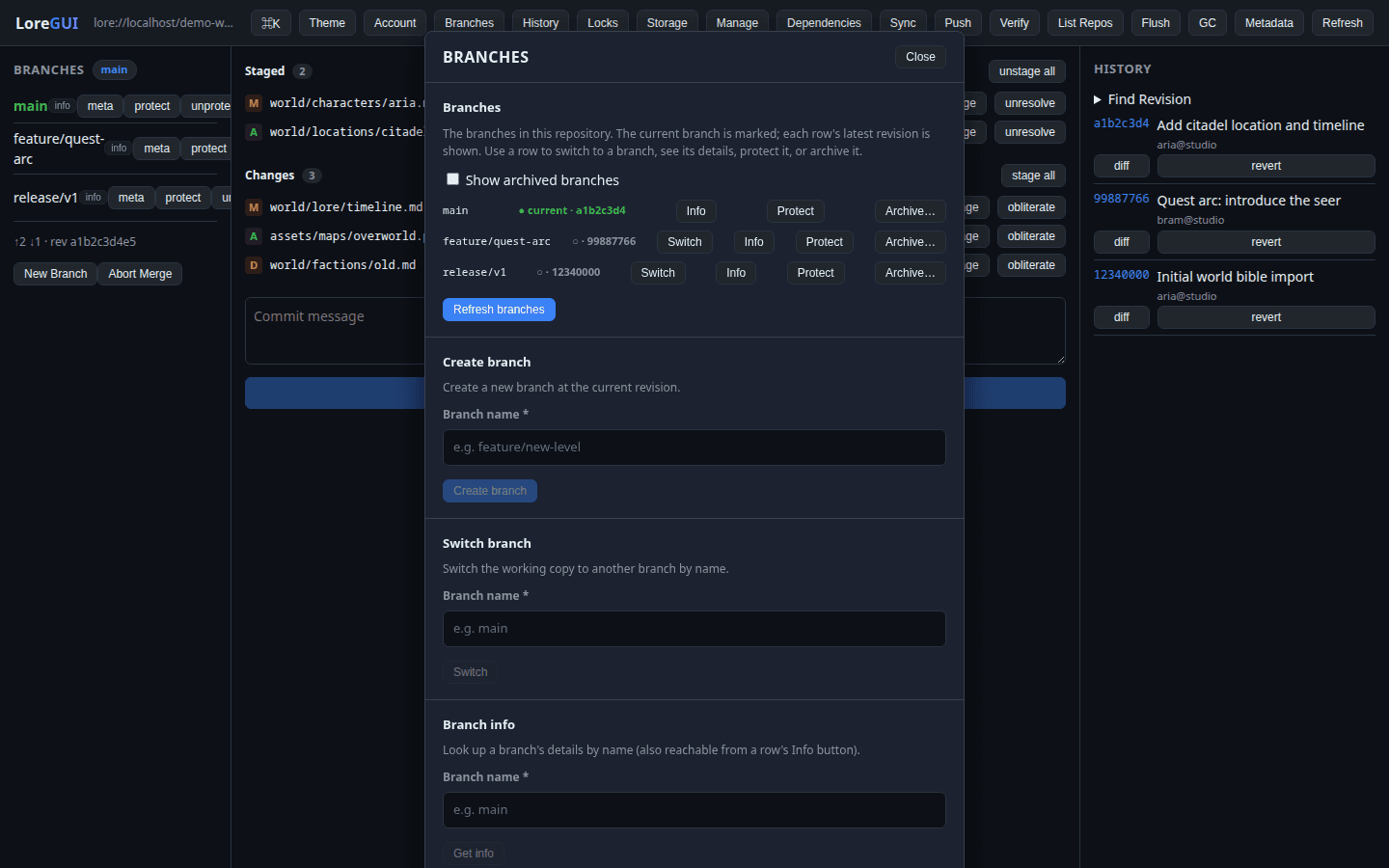
Branches
The primary surface for the branch domain. Create, switch, list, protect, reset, and archive branches. When two branches diverge, LoreGUI walks you through a guided three-way merge: start the merge, resolve each conflict as mine, theirs, or a manual blend, then finish it in one place — or abort.
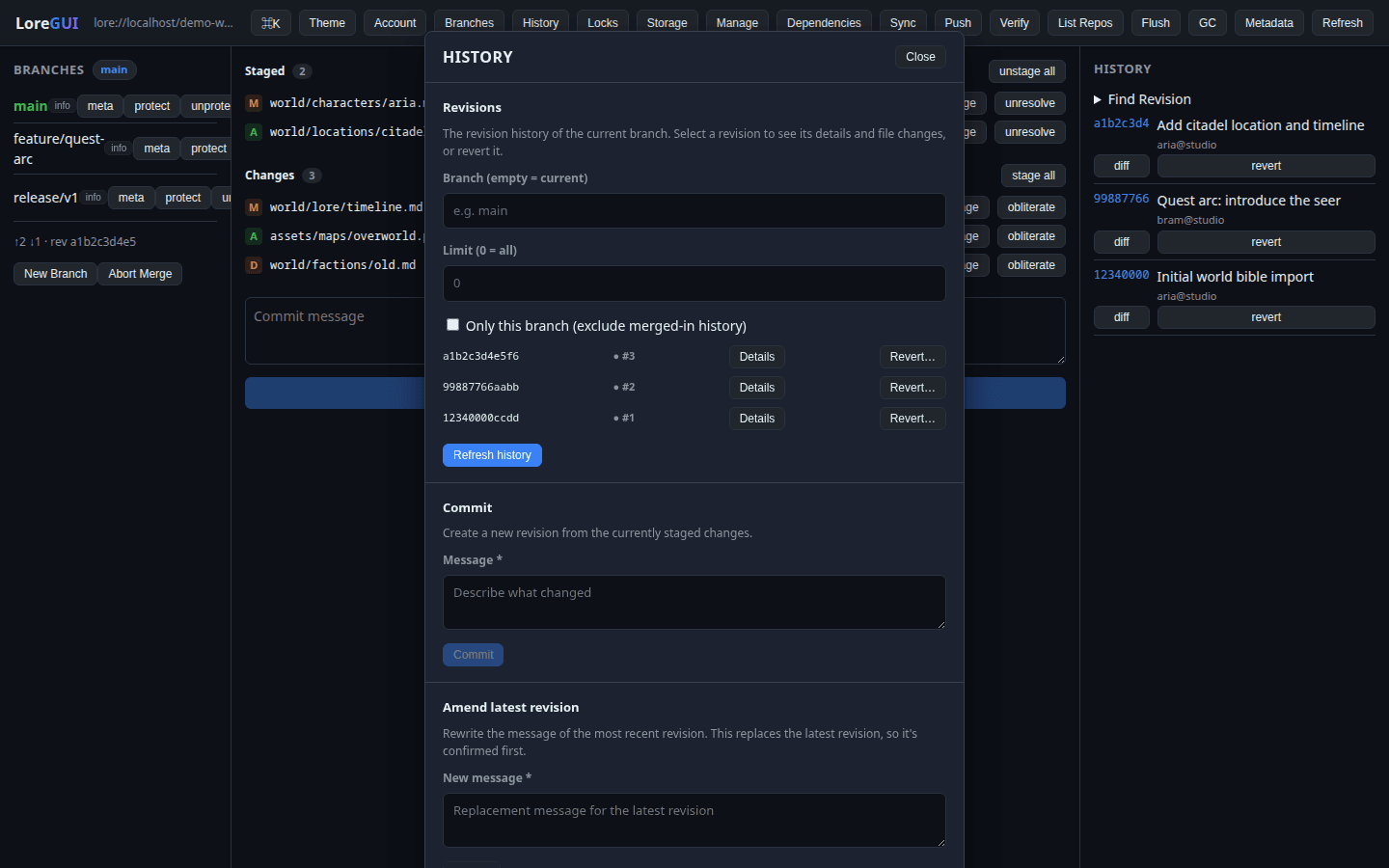
History
The home for the revision domain. It presents the revision history with per-revision row actions: open a revision to inspect its diff and info, revert it, or restore from it. (Committing happens in Changes, not here.)
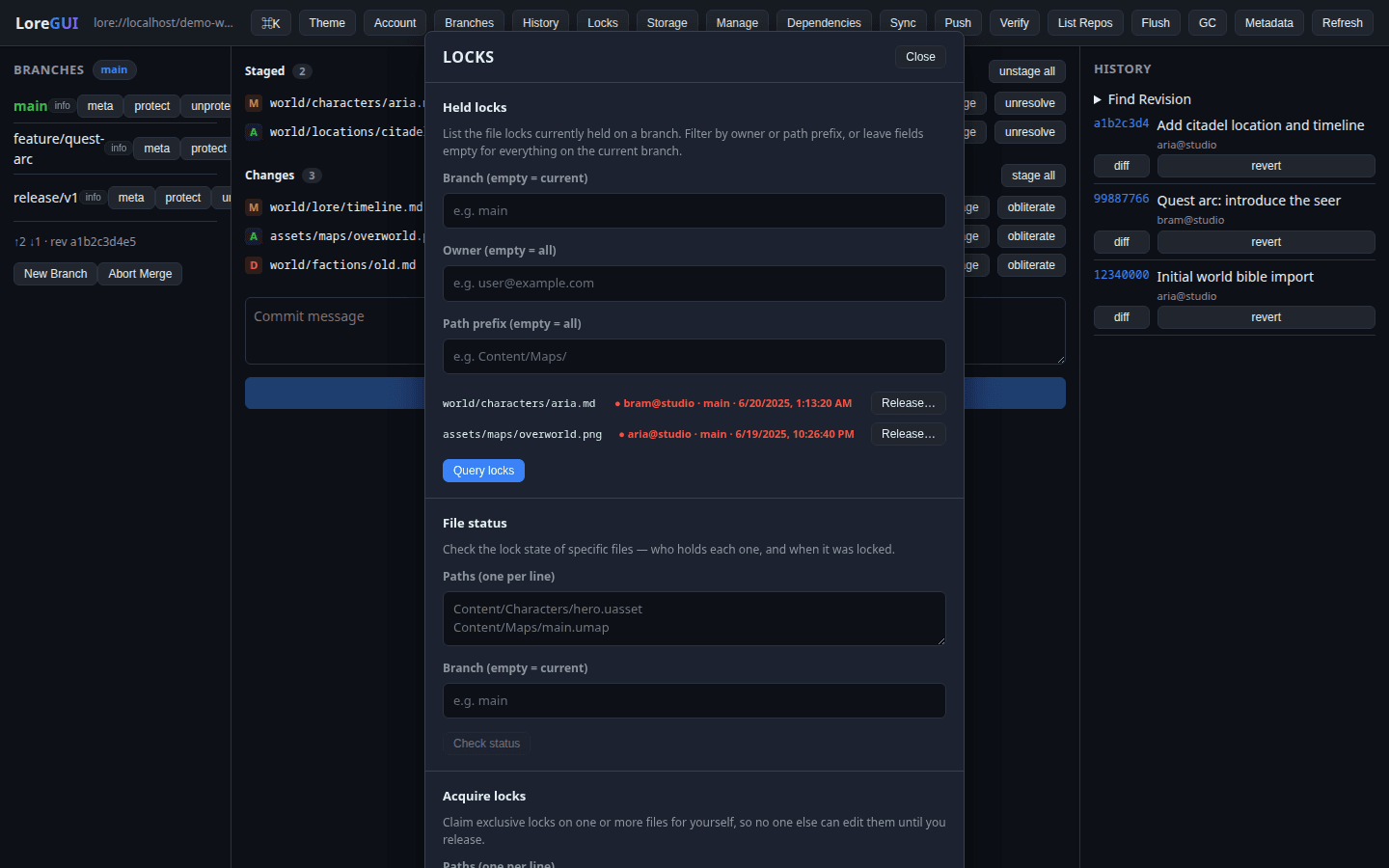
Locks
The primary surface for the lock domain. Binary assets can't be merged, so claim an exclusive lock before editing one. The panel lists held locks and their owners in real time — acquire, release, query, and status — and lock query/status returns the holder identity, so you always know who has a file checked out.
Storage
Shows which backend a repository is bound to and whether it's reachable. A connectivity test runs a real round trip (open → put → get → obliterate) and surfaces the actual error if it fails; fragment and usage info comes from the backend's metadata, and you can flush from here. Content is chunked and hashed with BLAKE3, so identical data is stored exactly once. Backends are local packfiles or S3-compatible object storage (S3 / MinIO / Garage); secret inputs are masked and never logged.
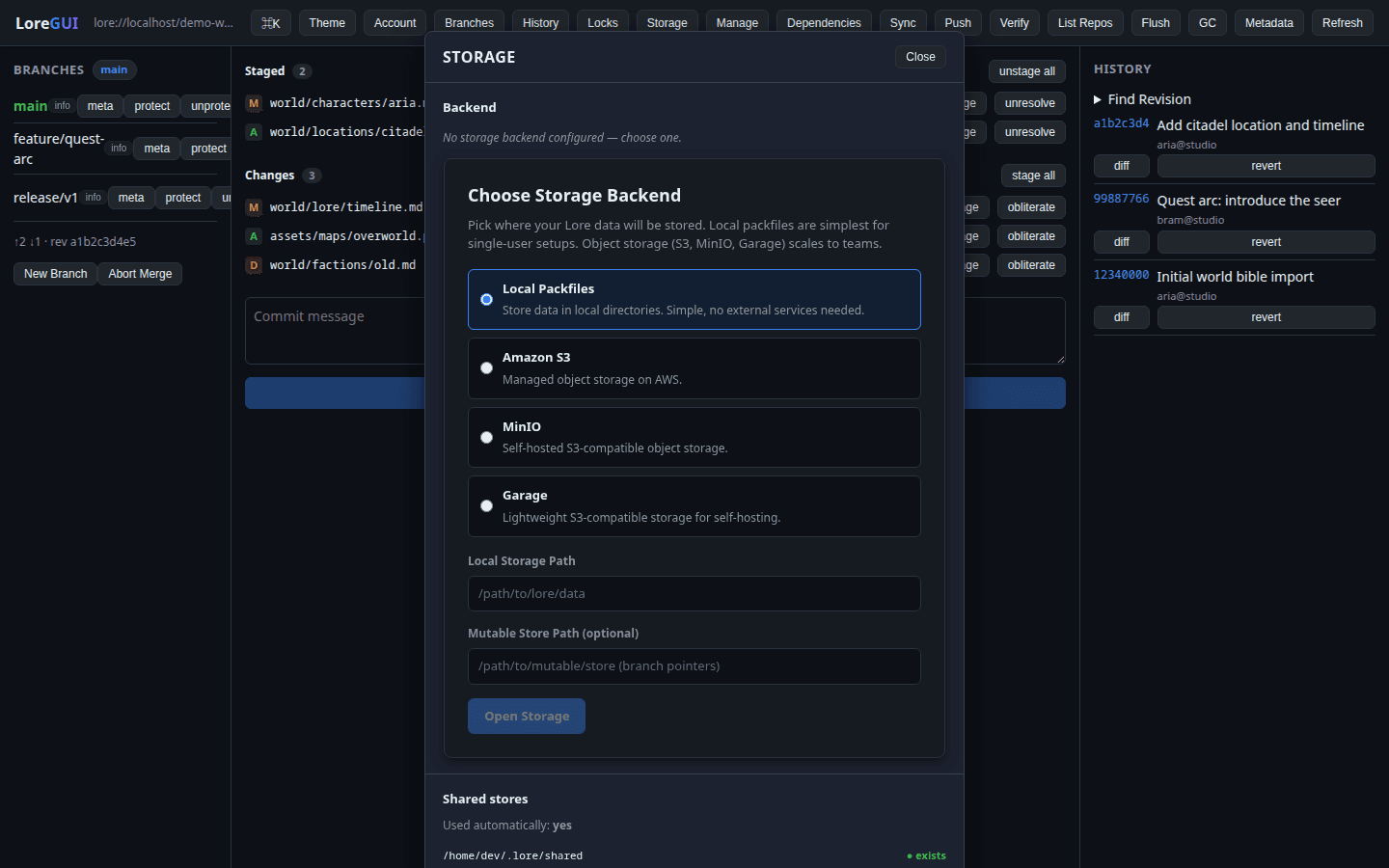
See Host a server for choosing a backend during setup.
Dependencies
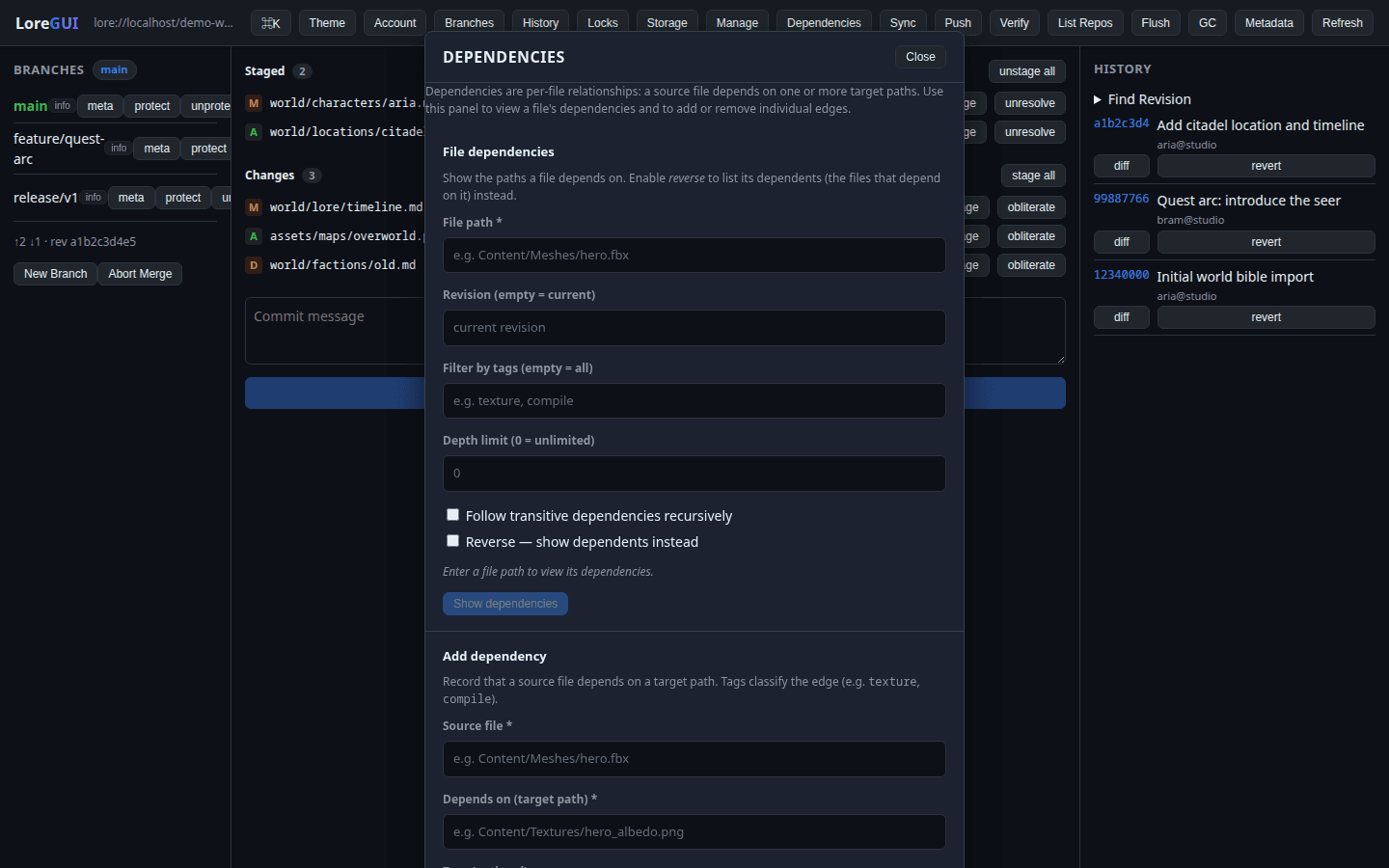
Tracks the links between files and the assets they reference. The dependency surface lets you see what depends on what — so you can change shared assets with confidence — and add or remove links cleanly. (Dependency editing is treated as an occasional/admin action, surfaced in the file detail view and under Manage plus the palette.)
Account
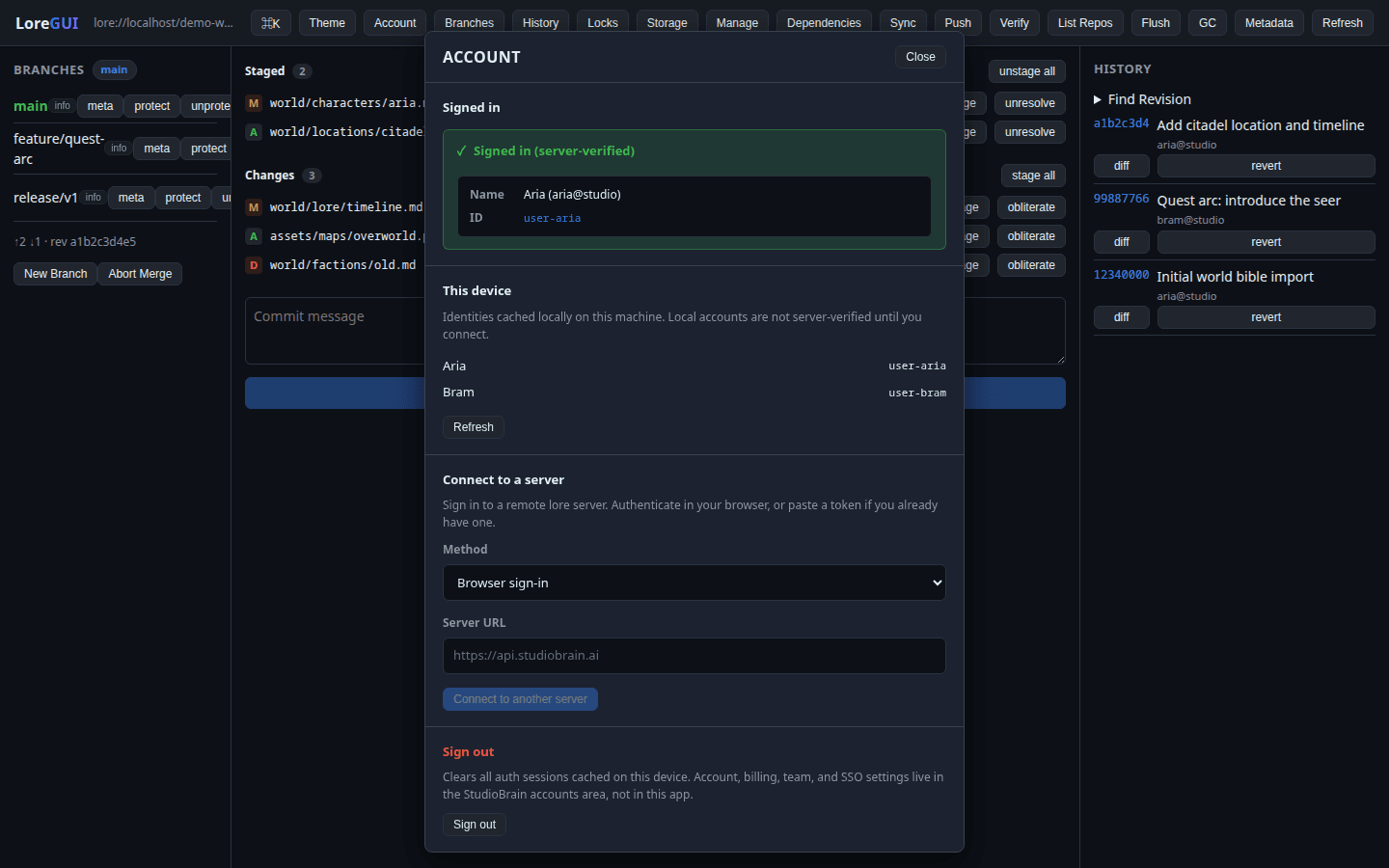
Your identity and the server you're signed in to, reached from the top-bar identity menu (and set up during onboarding). LoreGUI resolves your user info from the connection, so you always know who you are and where your commits land. The auth domain covers login, logout, and user info.
Manage
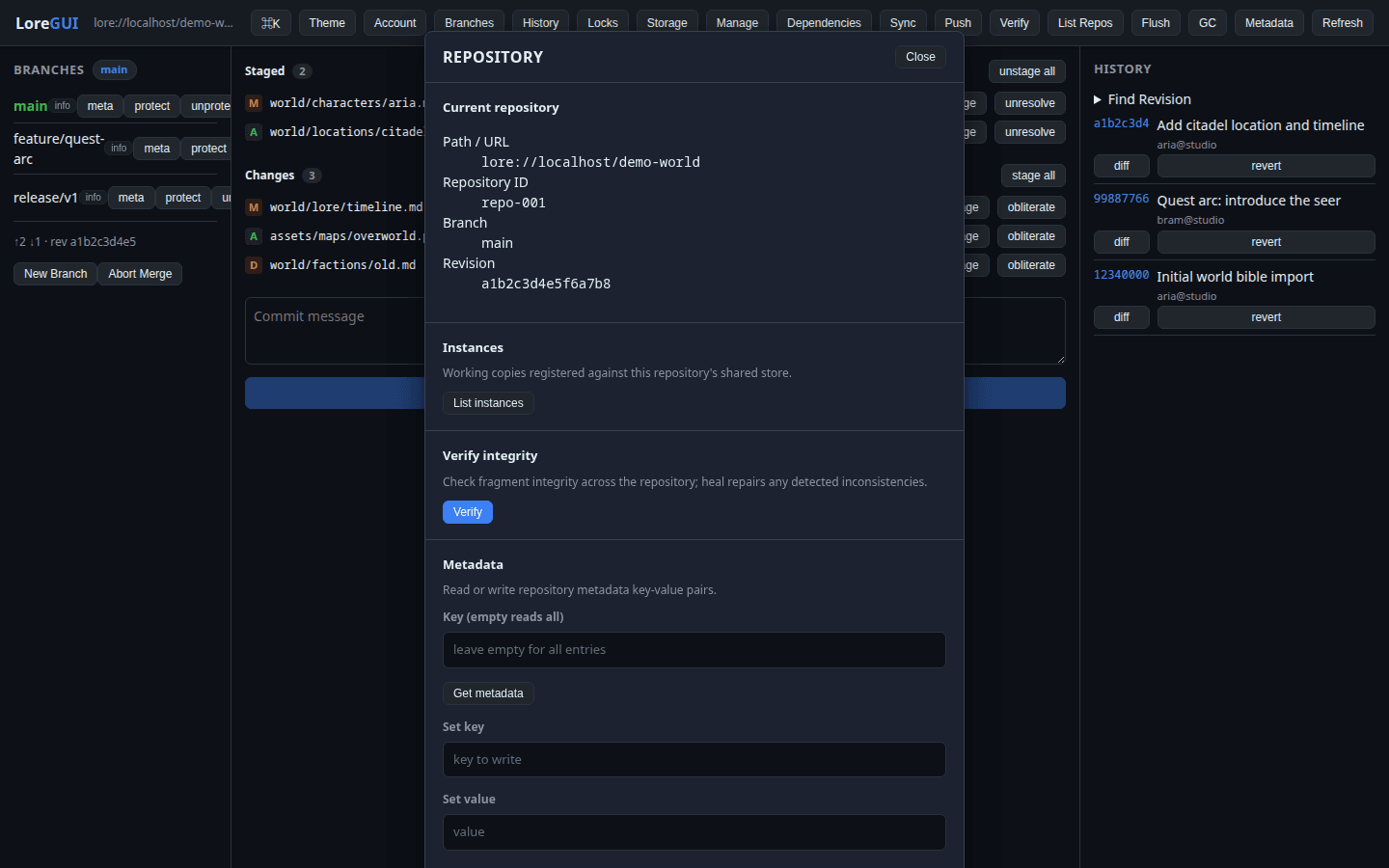
The Settings/Manage area hosts the secondary and administrative surfaces. Repository administration lives here — create and delete repositories, flush and garbage-collect storage, verify integrity, and set metadata. (Repository open/clone are top-bar actions; status is broken out into Changes.) The lore background service (start/stop) and shared-store configuration also surface here.
Several of these operations —
obliterate,delete,gc,reset, branchunprotect— are destructive. LoreGUI confirms before running them.
Theme
A top-bar action opens the theme editor, where every surface in the app is a semantic token you can edit, save, and share. See Theming for the full model.
Every operation behind these panels — with its arguments — is listed in the operation reference, and any of them can be run directly from the command palette.