Browse & search docs
Connect to a server
If your team already runs a Lore server, connecting is the common case. LoreGUI binds the connection in-process and pulls only the files you open — so even a multi-terabyte project is ready in seconds.
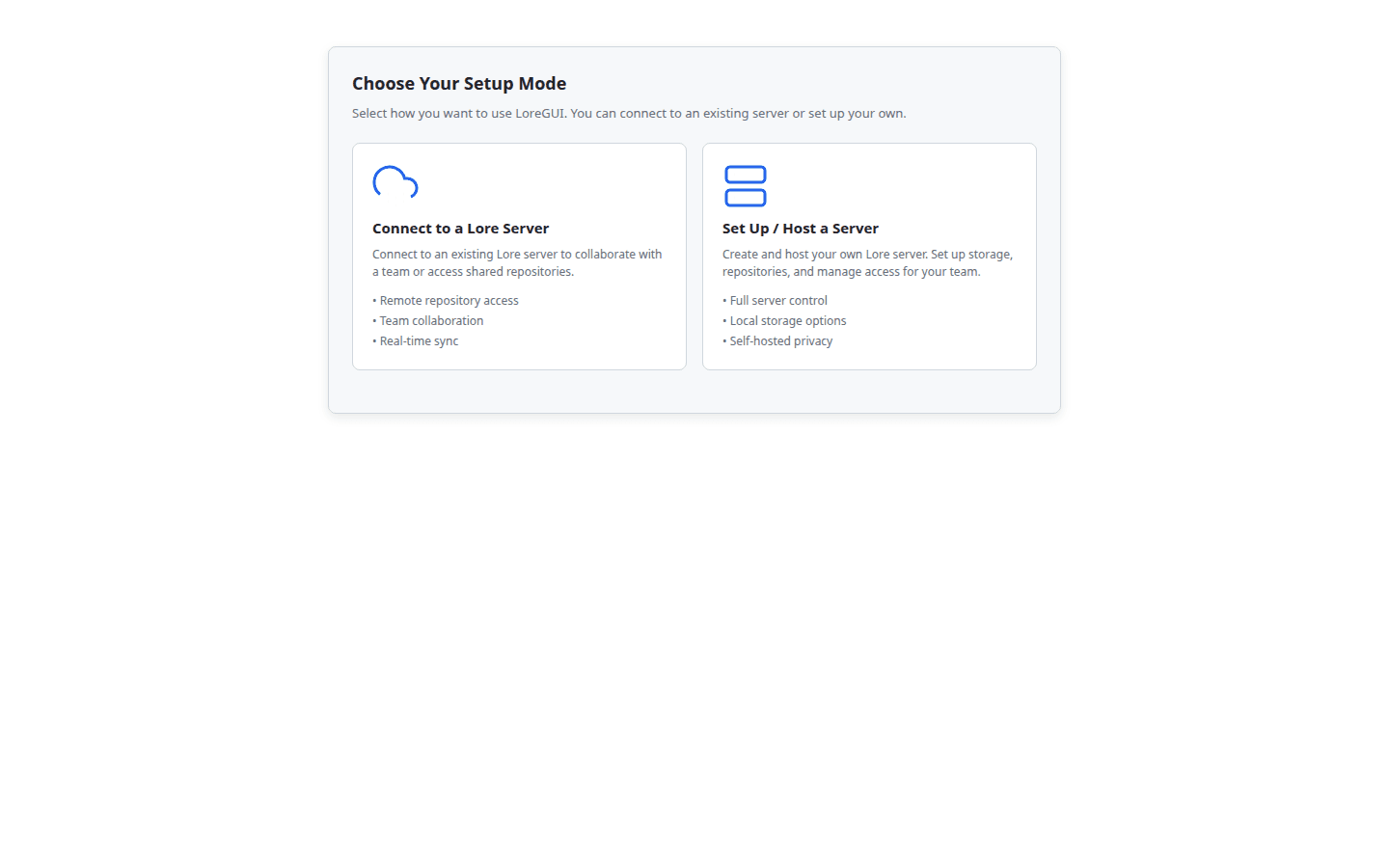
1. Choose what you want to do
With no validated project open, LoreGUI shows four explicit choices: Open existing, Create local, Connect, and Host. Pick Connect to join an existing Lore server. Local and LAN servers work without a StudioBrain account; StudioBrain sign-in is an optional Premium integration.
2. Point at the server
Choose a discovered LAN server or enter its lore:// address. A no-auth server
continues directly to repository selection; when the server requires auth,
LoreGUI runs the interactive login before cloning.
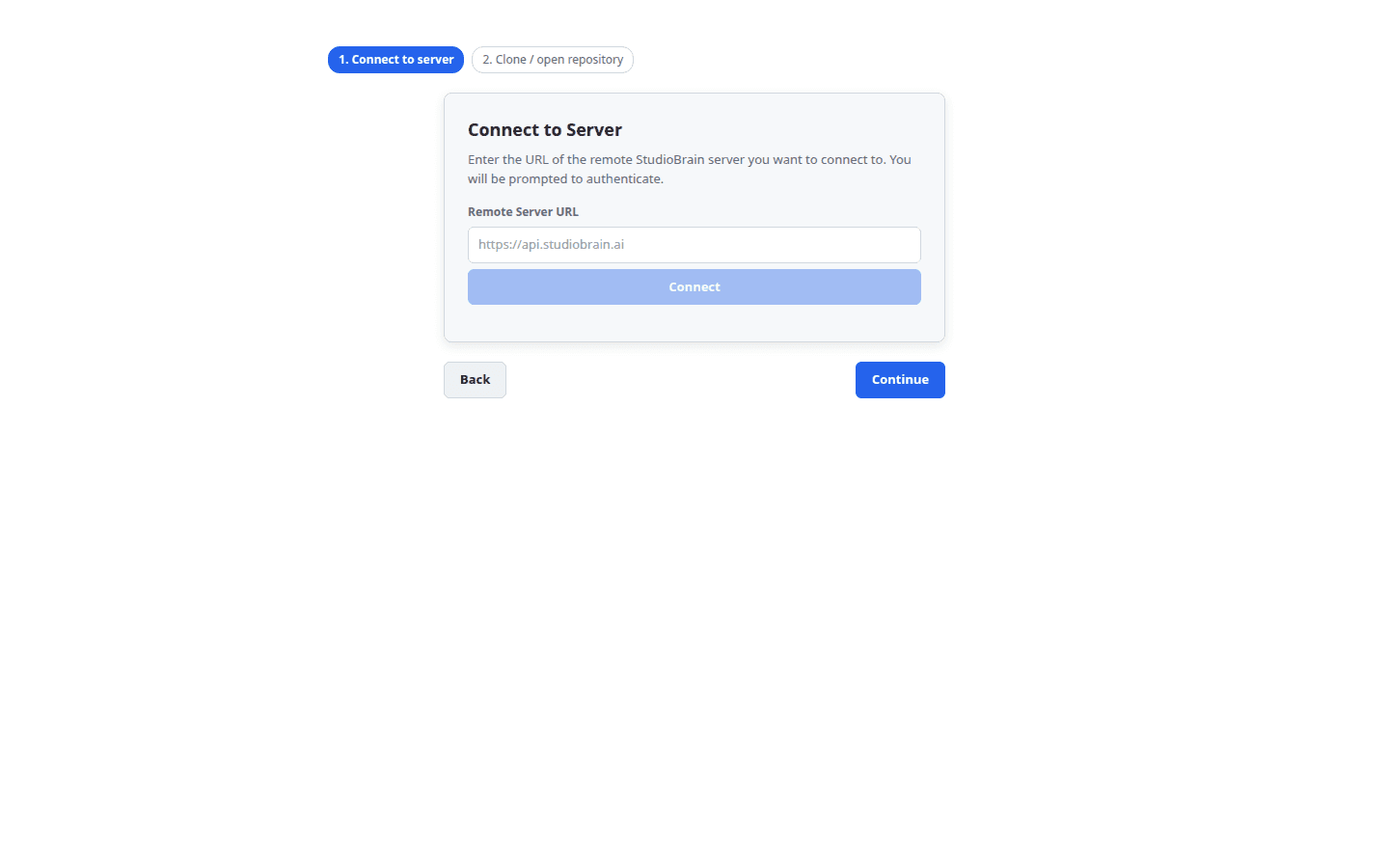
The flow is, in operation terms:
- Connect — use the discovered or operator-entered server address.
- Authenticate when required — no-auth is a first-class successful state.
- Browse repositories — the hosted-server card reuses its saved advertised URL; it does not ask you to re-enter that URL.
- Choose a local path — use the native Browse picker for the client working tree. This path is separate from the server's storage directory.
- Clone it —
repository.clonebrings the selected repository into that validated local path. LoreGUI fetches content lazily, so the clone is fast even for huge projects.
3. You're in
Once connected you land in the main view, with branches, your staged and unstaged changes, and the revision history side by side.
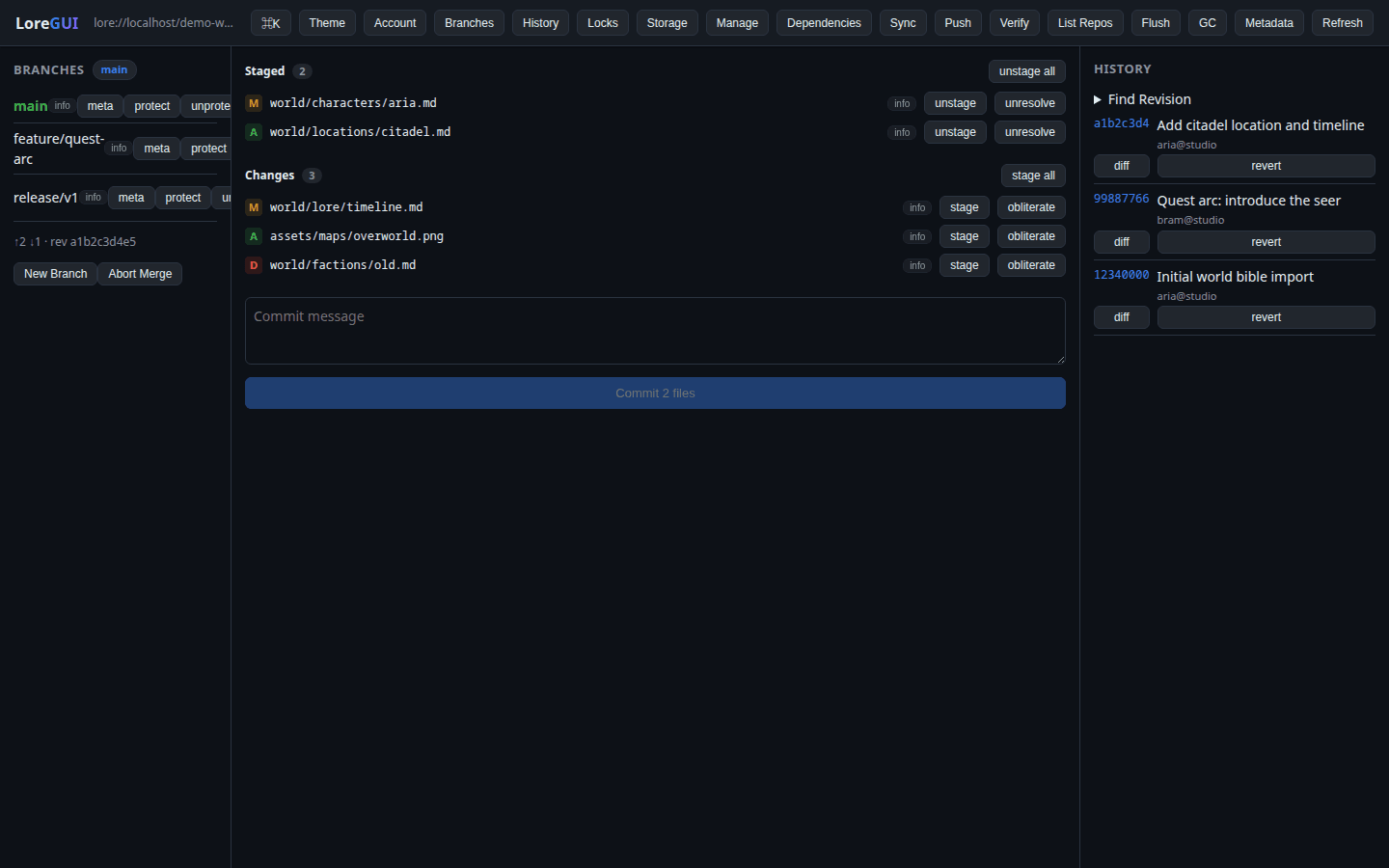
From here:
- Stage files and commit from the Changes surface.
- Switch and merge branches in the Branches panel.
- Claim an exclusive lock before editing a binary asset.
See Panels & domains for a tour of every surface, or the command palette to run any operation directly.
Identity & tokens. On authenticated servers your identity flows through as the connection identity and revision author. LoreGUI never logs auth tokens. No-auth standalone and LAN workflows do not require a StudioBrain login.